POCO Myanmar
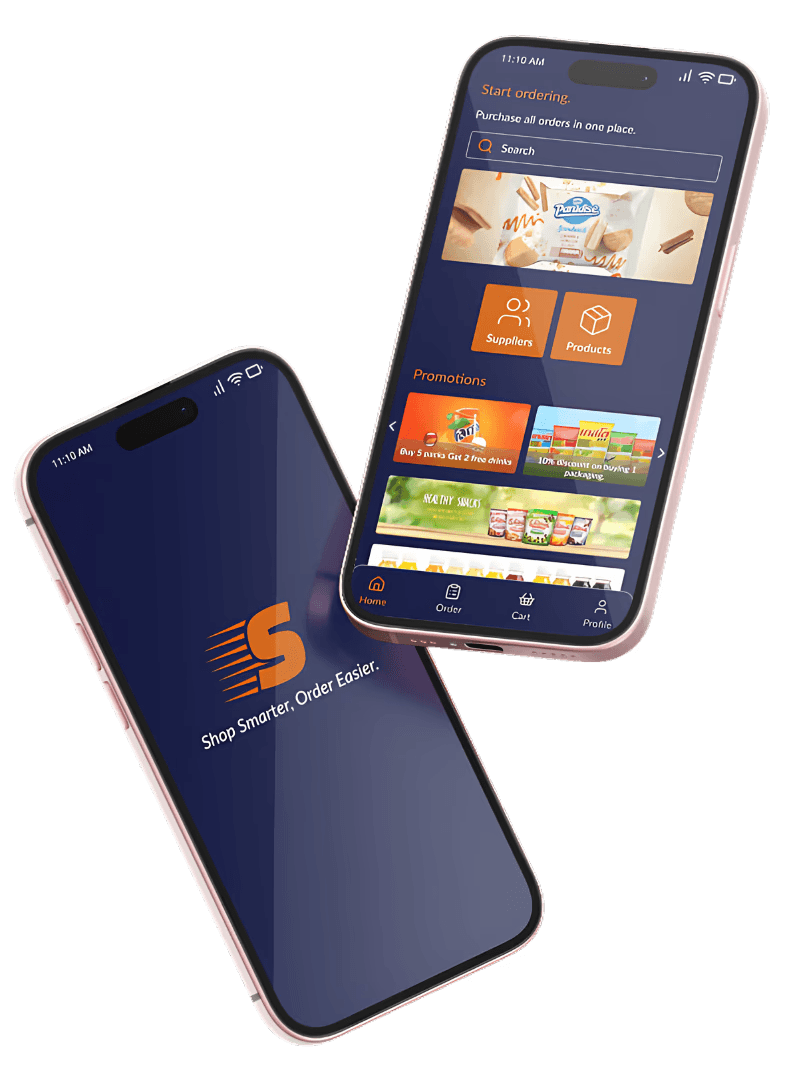
A cross-platform B2B enterprise ecosystem that unifies three disconnected data sources: Odoo ERP at the corporate level, field sales inputs from teams spread across multiple regions, and manual Excel sheets from external distributors into one connected, validated system.
250 - 500
Active users, daily operations
6
Hierarchical roles
4 months
Concept to live deployment
3
Data pipelines into one system
What I do
As sole UI/UX Designer and worked as project management, I led three developers to deliver the product end-to-end using Agile sprints. I translated dense business logic into user flows and wireframes, validating product concepts directly with stakeholders. Finally, I managed critical cross-functional alignment and user testing between our team, clients, and external Odoo engineering teams.
CONTEXT
The Problem Space & Business Context
Astra Wealth, an authorized distributor for POCO in Myanmar, needed a unified digital architecture to manage its massive scale. Their existing operations suffered from fragmented tracking, a lack of real-time visibility, and severe data mismatch risks.
The system had to seamlessly pull real-time data from an Odoo ERP portal while simultaneously synchronizing transactional inputs coming from field sales teams spread across multiple regions and divisions.
Core Challenges
High Cognitive Load: Designing a single mobile framework that dynamically morphs its interface, tracking metrics, and data visibility based on 6 distinct corporate hierarchies.
High-Stakes Data Integrity: Managing complex inventory movements without breaking usability, ensuring every transaction validates a unique IMEI number to eliminate human error and fraud.
It was not "make a nicer dashboard." It was: how do you design a system that pulls from three conflicting data sources, enforces strict validation at every input point, and remains usable by both a corporate director reviewing strategy and managing 6 hierarchies roles?
The Constraints
Six roles. All needing different data from the same system.
The sales hierarchy defines what data each person is authorized to see, what actions they can take, and how much of the organization is visible to them. Before designing any screen, I mapped how data controls flow downward through each tier because the wrong structure here cascades into every decision that follows.
Sale Director
Regional Sale Manager
Area Sale Manager
Trainer
Sale Supervisor
Promoter
Sale Director
Regional Sale Manager R
Area Sale Manager A1
Trainer T1
Sale Supervisor S1
Promoter P1
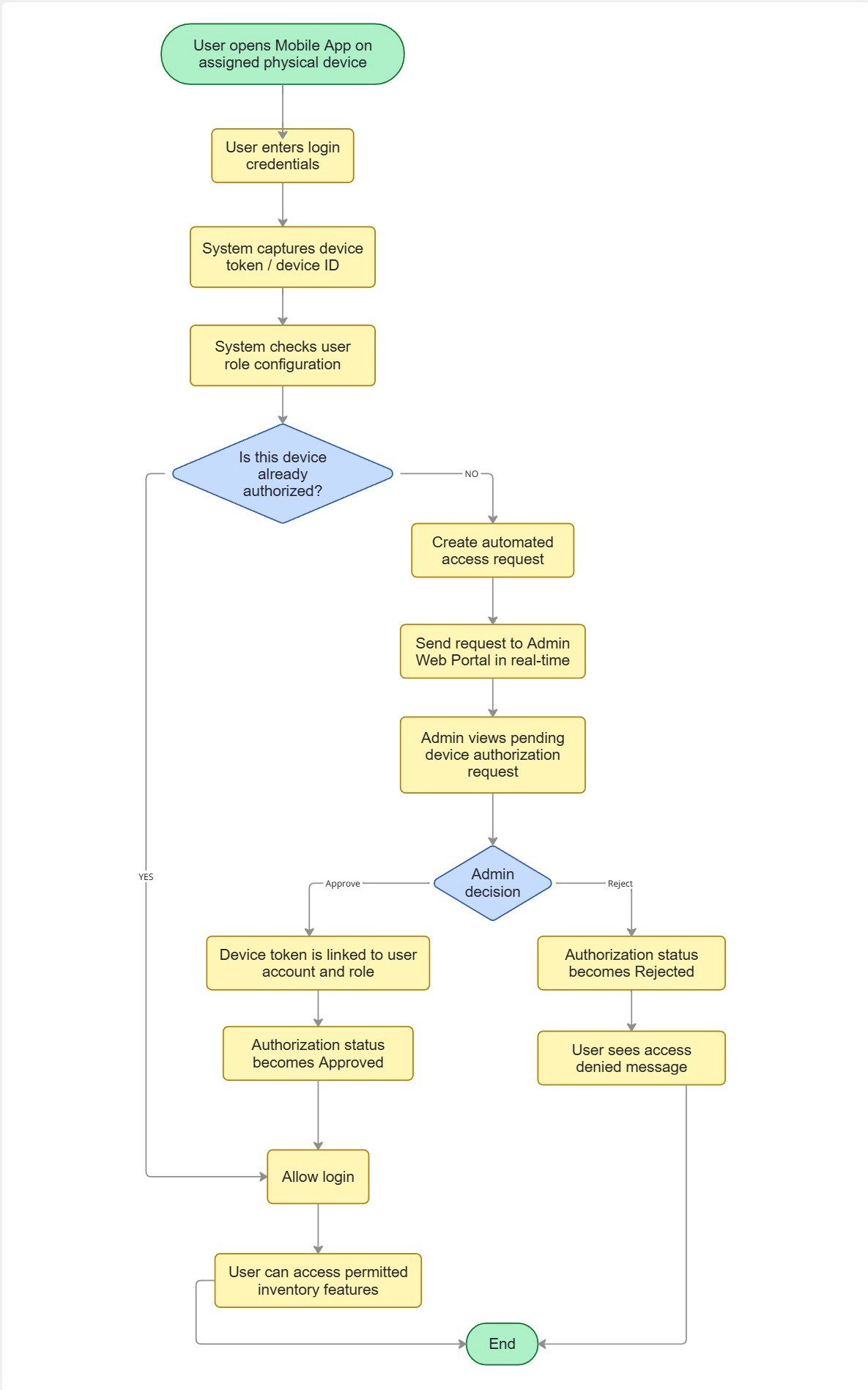
I don't do 6 different products for 6 role-users. Instead, I control the authorization with device id upon log in users with one same app.
To protect system security, I designed a 1-to-1 Device-to-Role validation flow. This structural choice prevents cross-login security breaches (e.g., preventing a Promoter from logging into a Supervisor’s device).
This reduces data access across different roles to 0%, maintaining the whole ecosystem usability.
The Login & Authorization Flow:
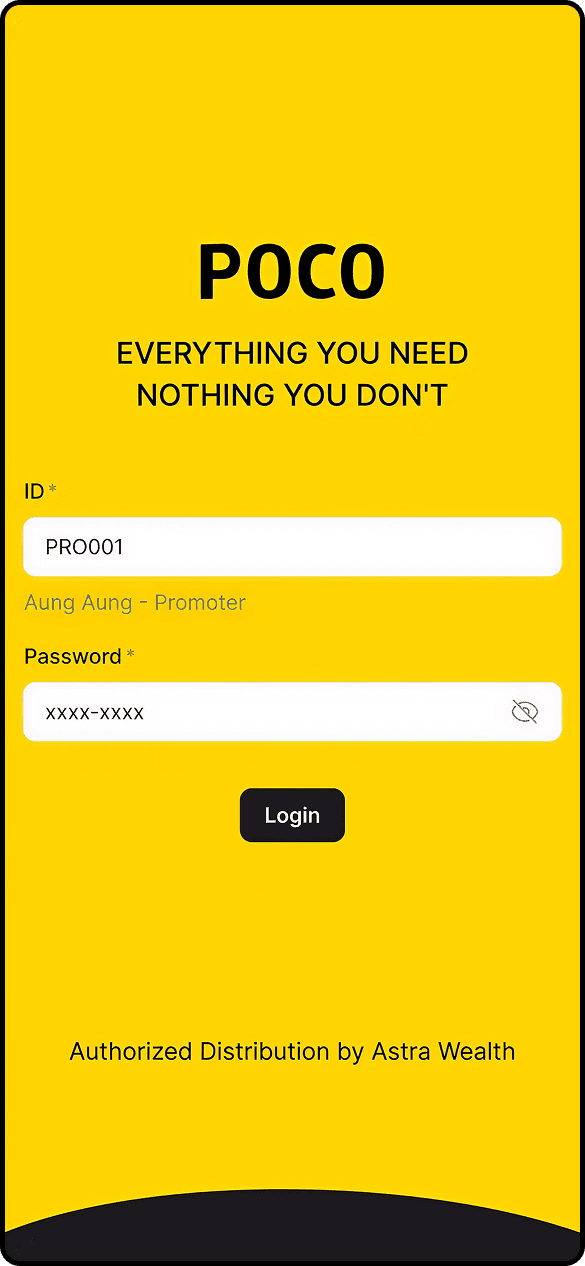
For role login, I decided to use the same screen login pattern with different role id authorization.
Login
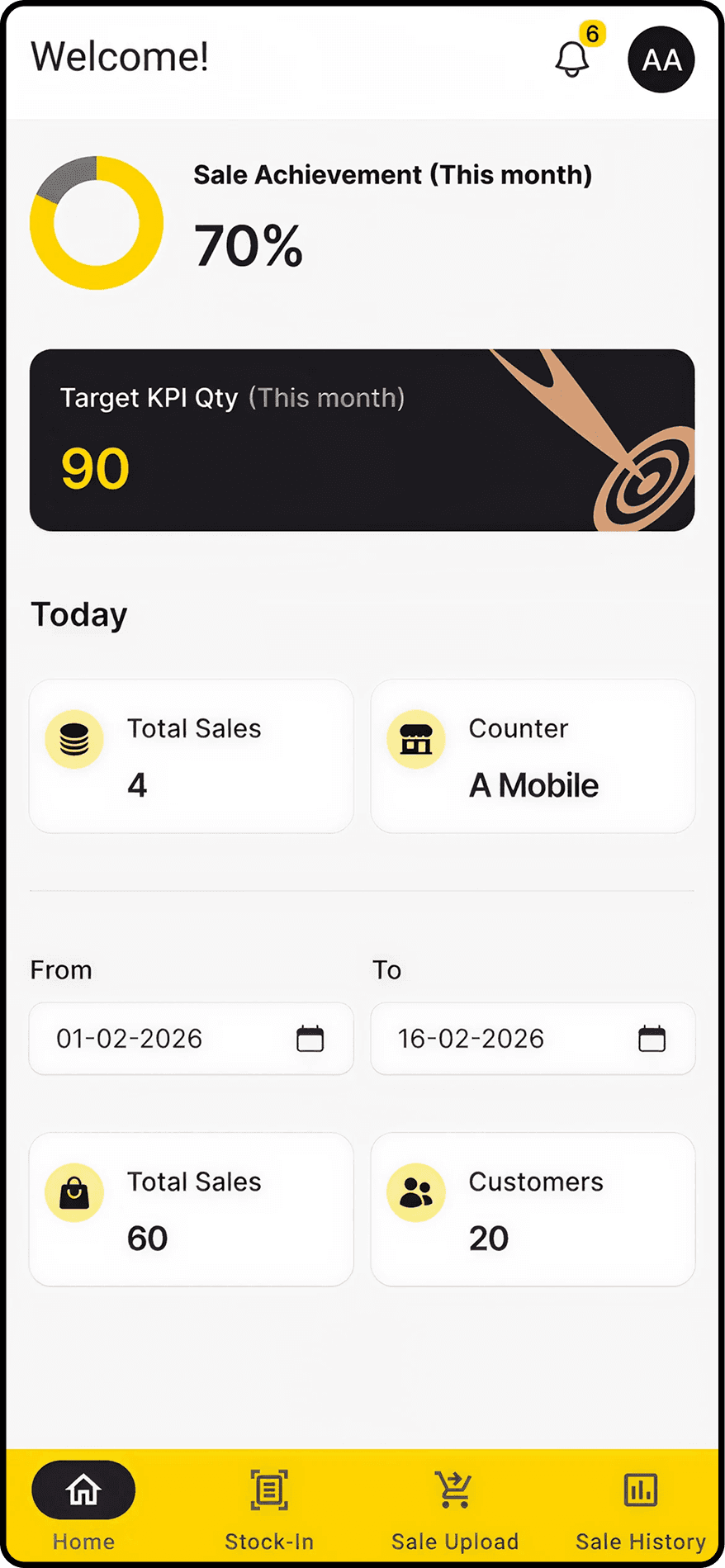
Here are the same mobile application home screen displaying different UI elements based on who logs in.
Sale Director Screen
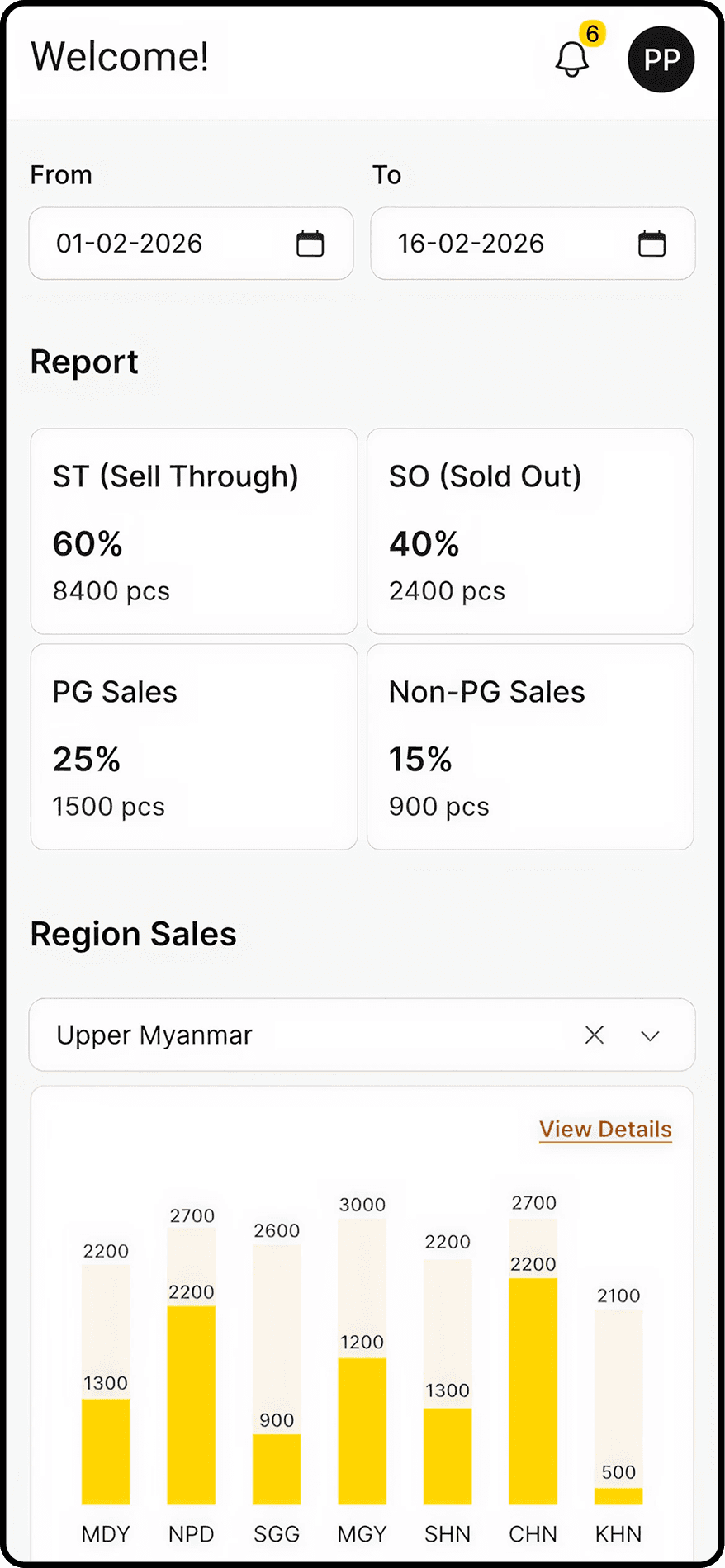
Regional Sale Manger Screen
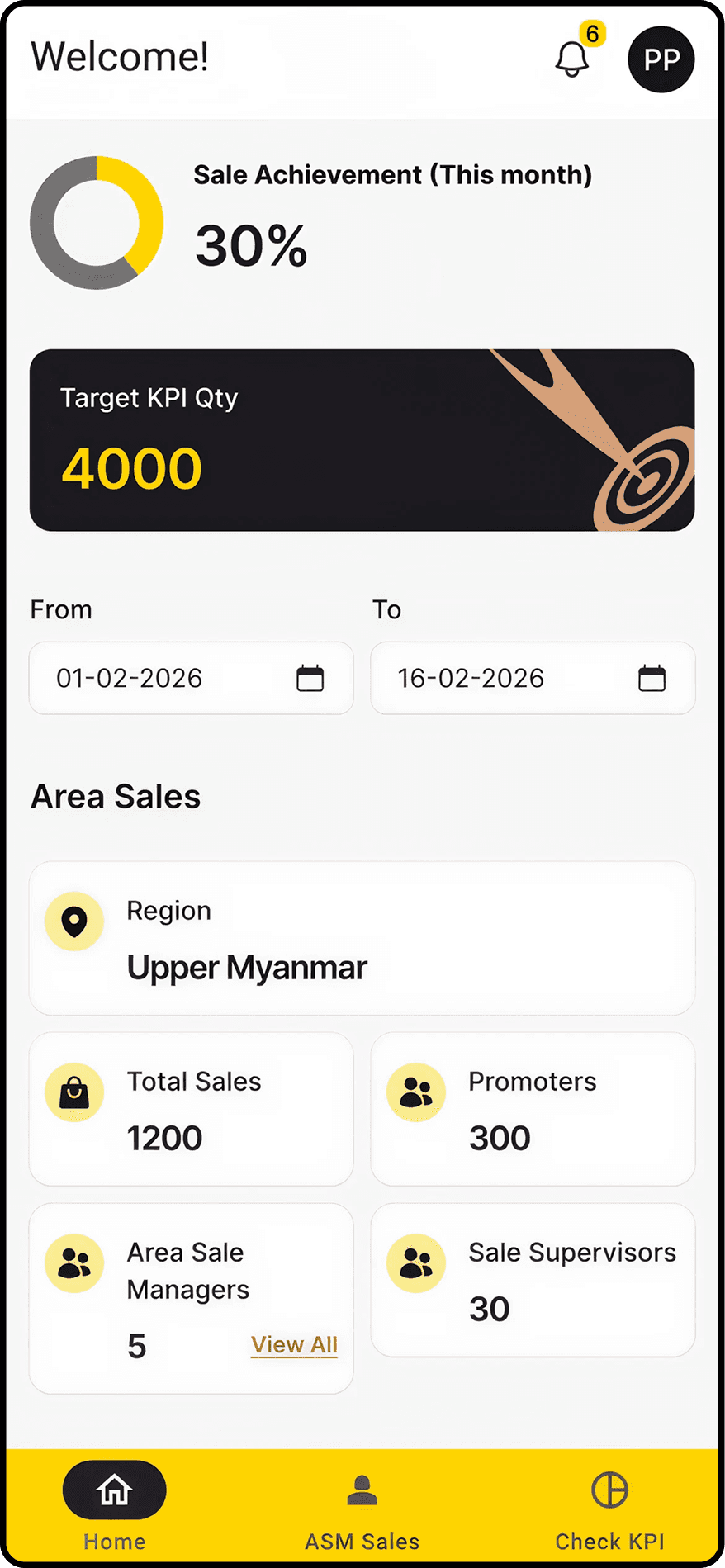
Area Sale Manager Screen
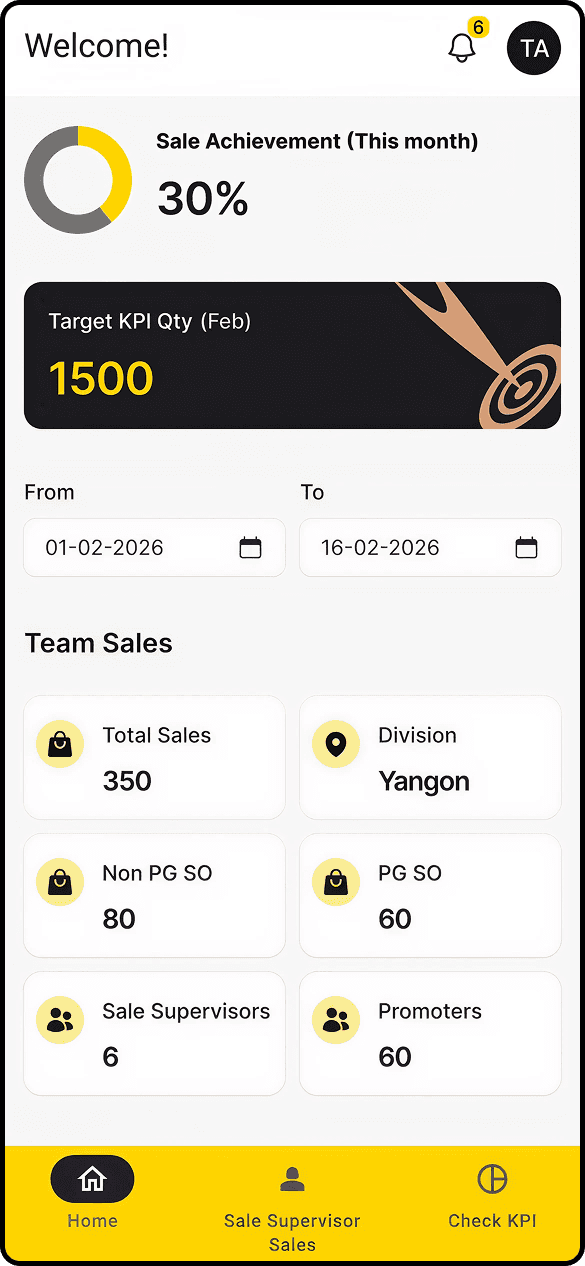
Trainer Screen
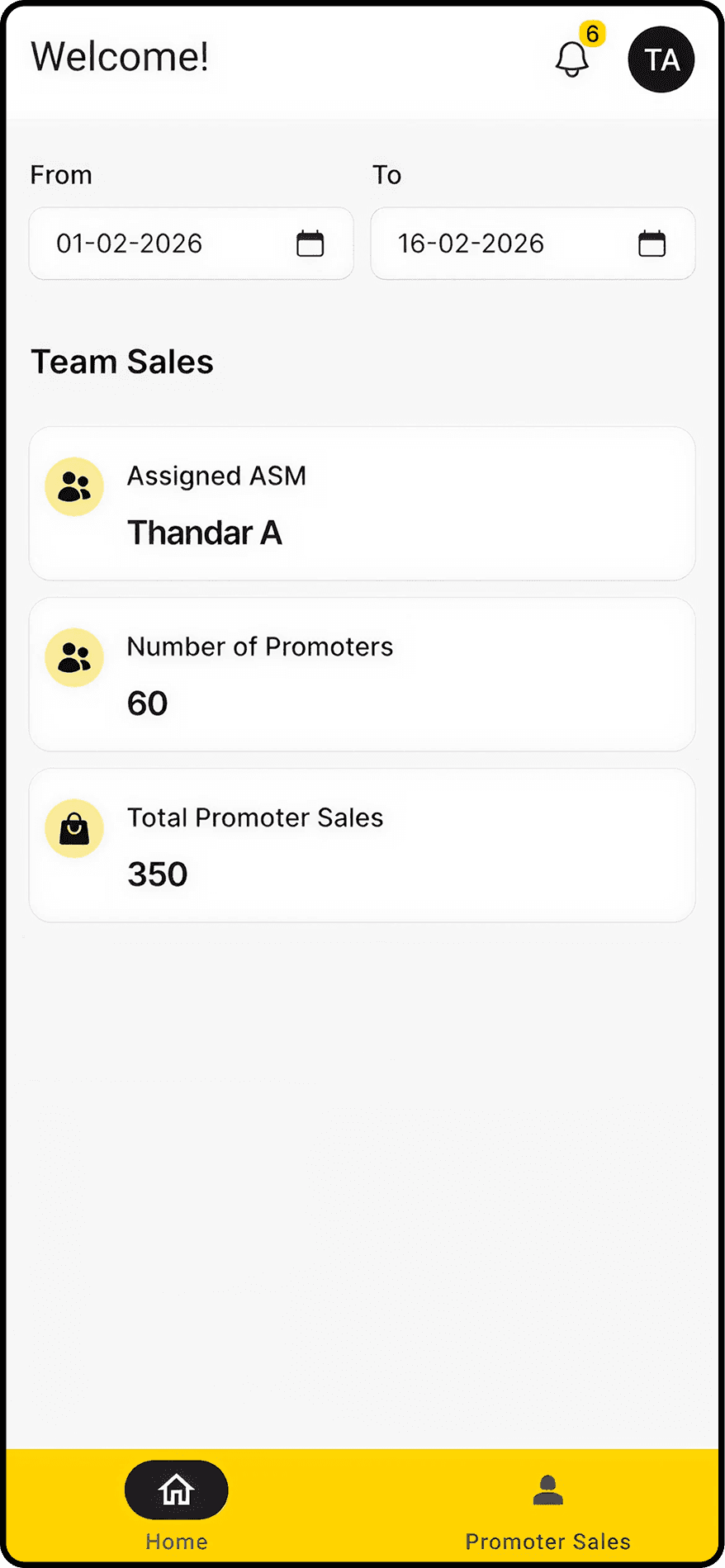
Sale Supervisor Screen
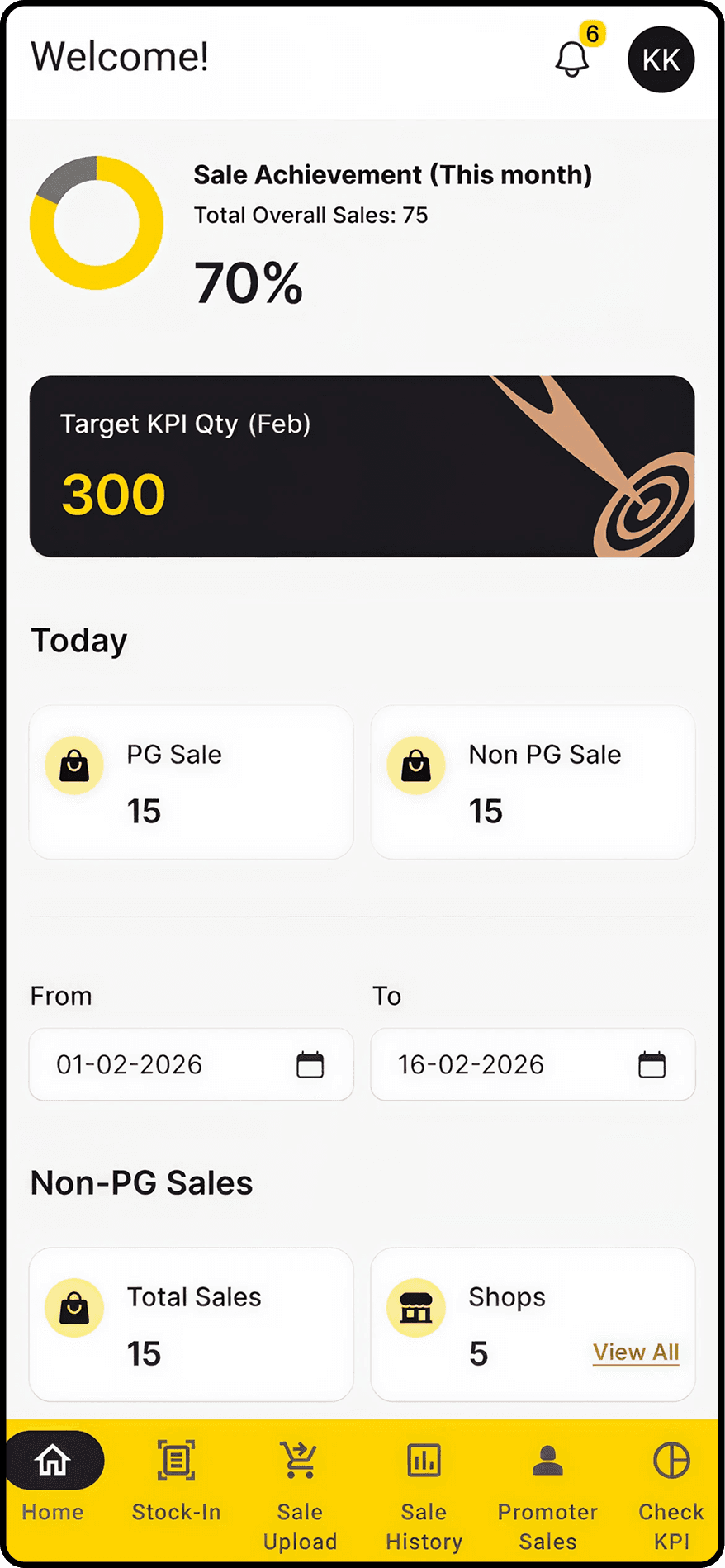
Promoter Screen
Rules of 4 core access logic and visibility metrics
Rule 1: Downward Visibility Only
A higher-level role can view lower-level roles assigned under their hierarchy branch.
Rule 2: No Upward Visibility
Lower-level roles cannot access users above them.
Rule 3: Assignment-Based Access
Each role can only access branches assigned under them.
For example, Regional Manager A cannot view Area Managers under Regional Manager B.
Rule 4: Recursive Child Access
Access automatically continues downward through all child relationships.
Example: If a Regional Manager can access an Area Manager, then they can also access:
•Trainers under that Area Manager
•Supervisors under those Trainers
•Promoters under those Supervisors
Sale Director
Regional Sale Manager R
Area Sale Manager A1
Trainer T1
Sale Supervisor S1
Promoter P1
The Constraints
One wrong IMEI entry corrupts the entire inventory chain.
The unique IMEI number is the critical anchor for tracking stock, managing data, and verifying transfers across the entire application ecosystem. IMEI come inside the system with 3 ways:
Shops purchasing items with a unique list of IMEI, synced from Odoo ERP
Scan IMEI in shop counters by promoters and sale supervisors on ground, validating that the imei received at shop counter is from the imei list from Odoo
Manual upload excel imei lists from external distributors to retail shop sell
All data imei list from shop purchasing syncing from Odoo to admin portal received must be the exact imei list.
Every shop purchasing item coming from Odoo ERP must include unique imei list for item list. These imei list will enter as shop item stock in admin portal for 'shop management'.
In 'Shop Managment', there is still constraints: shops that have counters and shops that don't have counters.
Shops that have counters are assigned to promoters who need to scan all items imei and submit back to admin portal so that no fraud imei item is received. Shops that don't have counters are assigned to sale supervisors who also need to scan and submit the imei that received at shops but one different things is sale supervisors have to handle many shops, so imei checklist is added in addition to scanning barcode to save time in submitting process. But all the imei list in each shop of the sale supervisors are imei lists that the shop has purchases from Odoo ERP. One key thing why I don't add imei check list in promoter screen is that the promoter cannot know which counter has which items arrived. And if i add checklist, there can be data imei duplication of submit and make the whole supply chain incorrect.
So, there are two kinds of stock imei tracking in admin portal: one for counter stock analysis and one for shop level stock analysis.
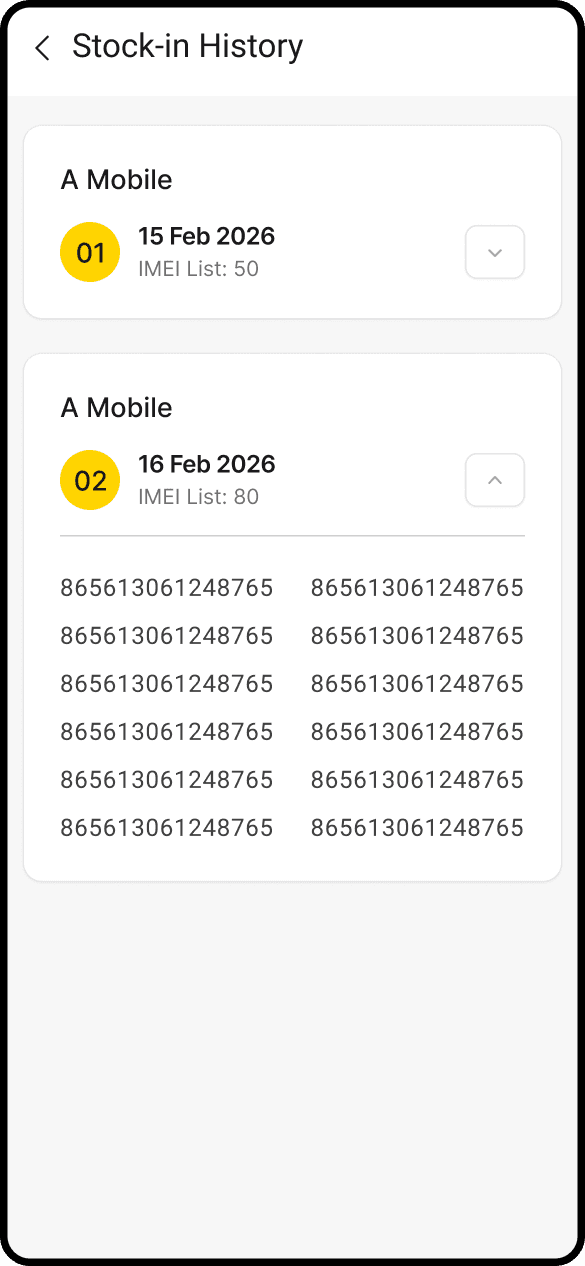
All imei are synced starting from Odoo ERP, admin portal and mobile field apps, when one imei is sold at shop or counter, the imei list inside the shop management of related shop will be change to sold out status with sold date which make tracking clearly. Also on the field side of mobile, sold out imei will not listed anymore when promoter or sale supervisor do the selling again which reduces the duplication error in faster and easiest way.
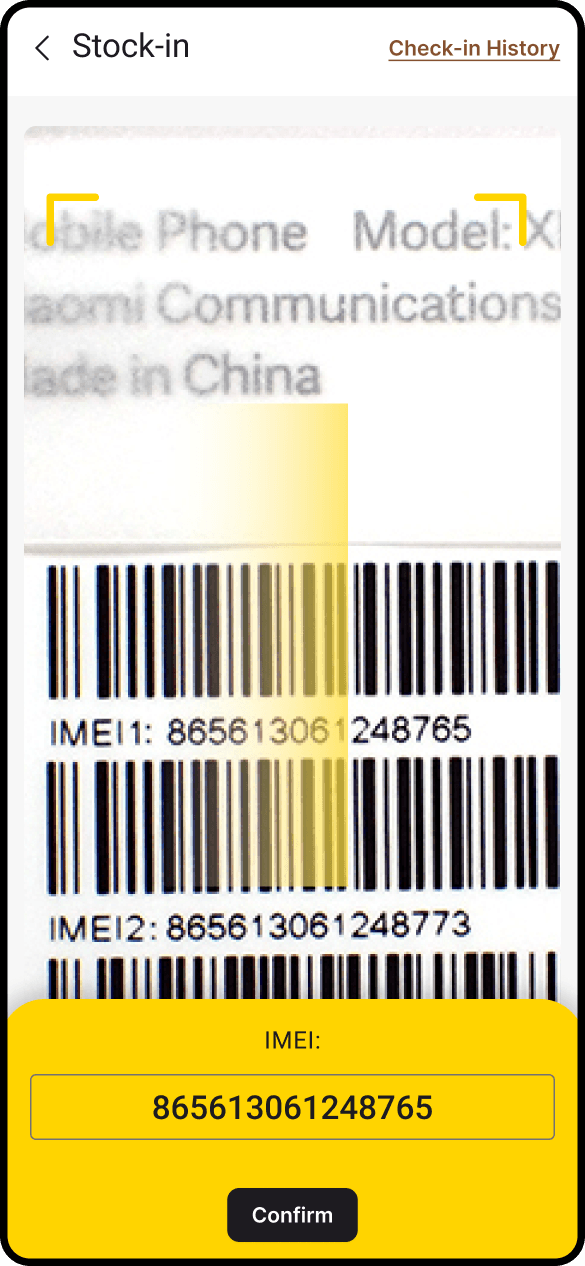
To make sure every item is correctly received at each shop counter, I design to add scan barcode and submit to system.
Here is how I decide to make logic-driven UX solutions:
Whitelisted Ingestion: The mobile app restricts data input fields during field stock-ins. Field workers cannot arbitrary type numbers; they must scan or submit IMEIs that match the master inventory whitelisted for their assigned shop or counter.
Barcode Scan
History for tracking in case of wrong entry
The Constraints
Structuring the Tri-Channel Stock Transfer
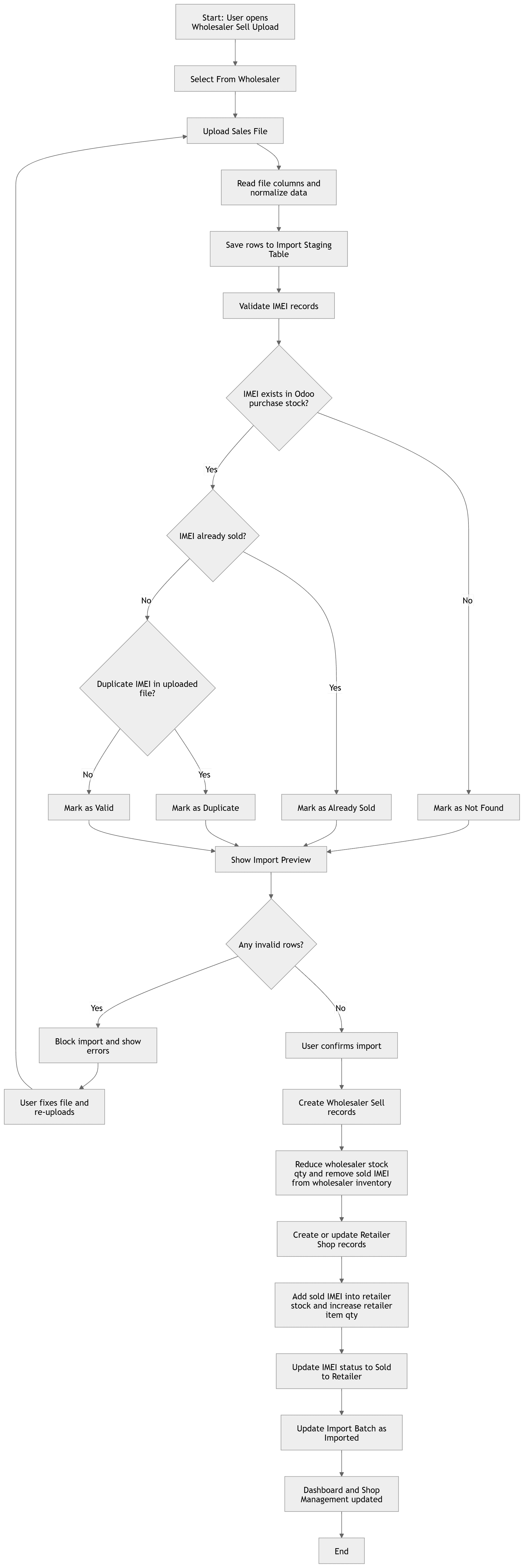
Inventory movements follow three distinct operational pathways, requiring a unified interface in the Web Admin Portal to track varied data ingestion models cleanly:The wholesaler-to-retailer pipeline was the highest-risk channel. Distributor Excel files were created outside Odoo entirely. If bad data committed directly into inventory, there was no clean way to reverse it.
I decide to add p
The Excel file is parsed and previewed before anything commits. Duplicates and format errors are flagged in place. Successful imei validation are inserted under each shop stock, selling from wholesalers and invalid imei are given back error message for excel imput. Bad data never enters the system silently.
The flow of how excel data is filtered
For role login, I decided to use the same screen login pattern with different role id authorization.
Login
Here are the same mobile application home screen displaying different UI elements based on who logs in.
Sale Director Screen
Regional Sale Manger Screen
Area Sale Manager Screen
Trainer Screen
Sale Supervisor Screen
Promoter Screen
Transfer Types
Design Approach
Counter to Counter
The stocks are transferred between counters within the same shop.
Shop to Shop
The stocks are transferred between shops.
Wholesaler to Retailer
Excel parsed and previewed. Duplicates and errors flagged before import.
Say hello!
I love discussing product ideas from different perspectives.